
01
Choose an audio file
Select an MP3, WAV, FLAC or M4A file from your device. Files can be up to 50 MB and 10 minutes long.
AI AUDIO SEPARATION
Use this free online instrumental remover to remove the lead vocals from a song and make a backing track. Upload an audio file, preview the instrumental first, then download it for karaoke, rehearsal or editing.
Powered by Demucs, an open-source music separation model developed by Meta.
Make an instrumental backing track
Drop an audio file here or choose one from your device
MP3, WAV, FLAC or M4A · up to 50 MB · up to 10 minutes
Audio is sent securely for AI processing. Temporary input and result files expire after one hour. Only upload audio you have permission to use.
Choose a song to create its instrumental track here.
Choose a song to create its instrumental track here.
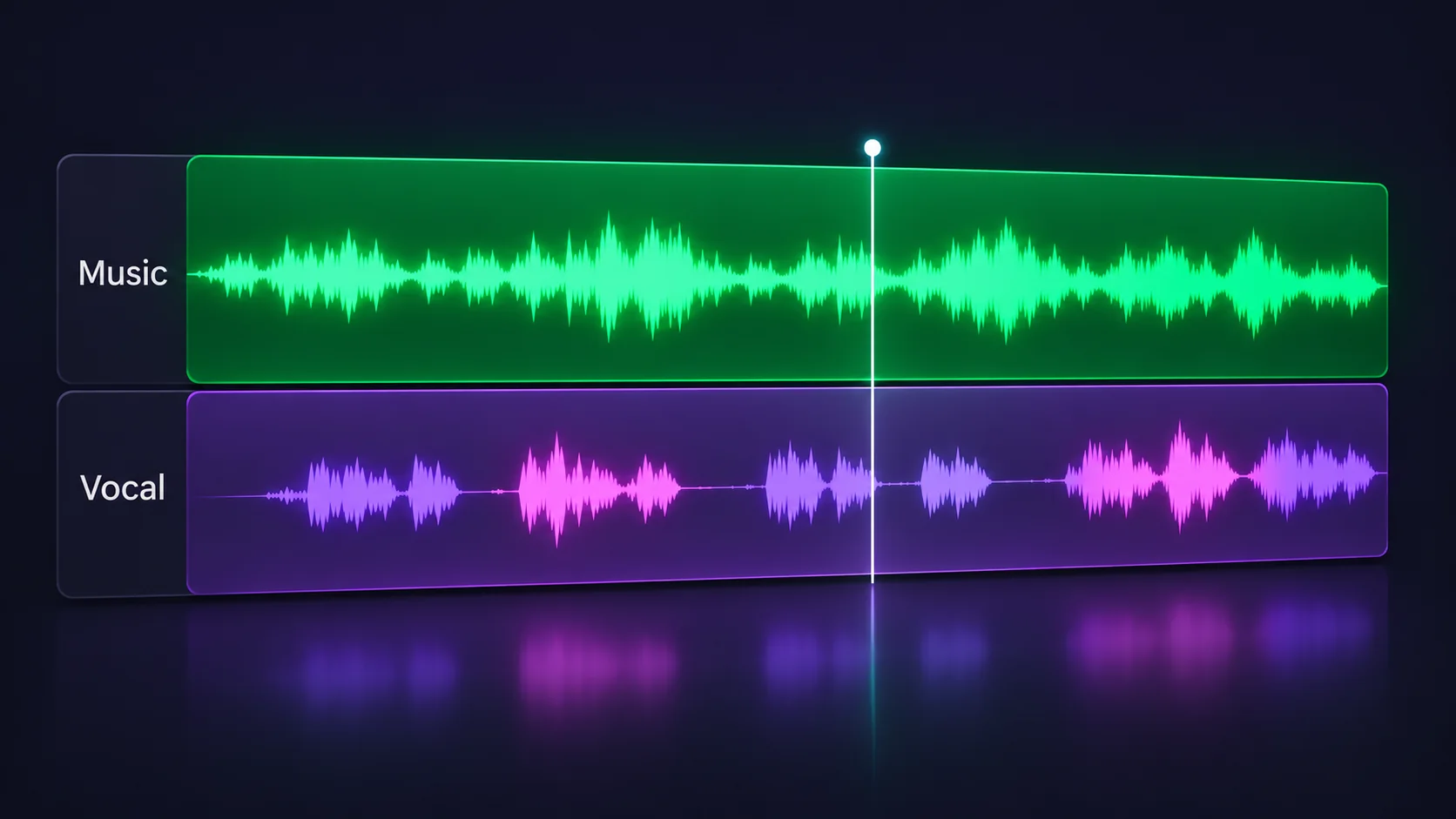
An instrumental remover creates a vocal-free version of a mixed song by separating the lead voice from the accompaniment. This page focuses on the instrumental backing track: upload audio and the model estimates a vocal stem plus accompaniment stems, which your browser combines into one track. You can also preview or download the separated vocal. Use the instrumental for karaoke, rehearsal, a cover or an edit. It is an AI estimate rather than a recovery of the original studio session, so reverb, backing vocals and overlapping sounds may leave artifacts. If you want the isolated voice to be the main result, open our Vocal Remover page.
THREE SIMPLE STEPS
Select an MP3, WAV, FLAC or M4A file from your device. Files can be up to 50 MB and 10 minutes long.
Start the instrumental remover and keep the page open while the audio is separated. The tool prepares the vocal-free mix and the isolated vocal track in one job.
Listen to the instrumental backing track in your browser. Download it for karaoke or practice, or save the vocal track if you need both sides of the separation.
Make a backing track from a song so you can sing along, rehearse a set or practice without the original lead vocal competing with you.
Use the instrumental version as a practice reference while preparing a cover. Preview the result first to check how the separation sounds with your source recording.
Add a vocal-free music bed to an edit or work on the accompaniment separately. This page accepts audio files; it does not process video uploads.
Listen to the accompaniment without the lead vocal while sketching an arrangement or an authorized remix. The separated track is a mix reference, not a set of original studio stems.
Choose the tool that puts the part you need first, or split the whole song into stems.
Answers about creating a backing track, supported audio files, processing, privacy and the limits of AI music separation.
An AI instrumental remover on this page removes the lead vocal from a song mix to create an instrumental backing track. It also returns the separated vocal, so you can preview or download either result.
Upload an MP3, WAV, FLAC or M4A file and choose Create instrumental track. The tool separates the vocal from the accompaniment, mixes the accompaniment into a backing track, and shows it first for preview and download.
The main result is the instrumental version with the lead vocal reduced. A separate vocal track is also available. If you only want to isolate and work with the singer, use the Vocal Remover page instead.
Yes. This instrumental remover is currently free to use online, with no subscription or account required. To keep the service available, requests may be rate-limited.
Upload MP3, WAV, FLAC or M4A files up to 50 MB and 10 minutes long. Browser and codec support can vary by device.
Yes. It creates an instrumental backing track by separating the lead vocal from the accompaniment. Preview the mix before downloading it for singing or rehearsal.
Yes. The same separation job includes a vocal track as well as the instrumental backing track. The instrumental appears first on this page; use Vocal Remover if an isolated voice is your main goal.
Not at the moment. This page accepts MP3, WAV, FLAC and M4A audio files. Extract the audio from a video first if you have the rights to process it.
Like any AI instrumental remover, it estimates which sounds belong to the voice and accompaniment; it cannot perfectly reconstruct a studio mix. Reverb, backing vocals and overlapping instruments can leave artifacts or vocal bleed.
No. Audio is sent securely to an online service for separation. Temporary input and result files expire after one hour, and audio payloads are not stored in request history.
That depends on the rights to the original recording and composition. Creating a backing track does not grant permission to sample, publish or sell copyrighted music; check your licenses before commercial use.
This page focuses on a combined instrumental backing track and the vocal. For separate drums, bass, guitar, piano and other instrument tracks, use the AI Stem Splitter.